

(This will auto-configure an Inbound Route also)
Tip
Outbound destinations can be created also.
Select Dialplan from the drop-down list and then click Destinations.
To add a destination, click on the plus button on the right.

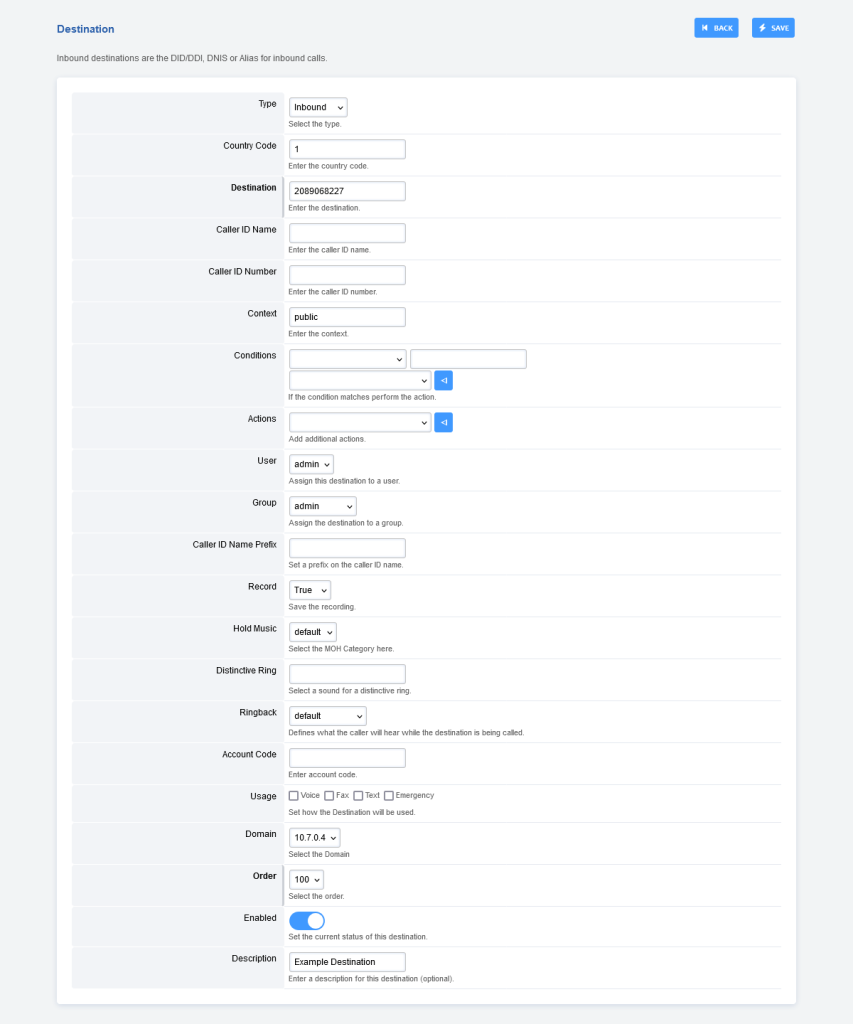
Enter the route information below and click Save once complete.
Examples of options under Actions and Conditions.

- Type: Inbound or Outbound. Choose if this is an inbound destination or outbound destination.
- Destination: This is usually the DID a caller will call.
- Context: This will usually be public.
- Actions: Choose where the call will go after it enters Peerone PBX.
- Dialplans can also be used as an action. To enable a dialplan to be visible, go to Dialplan > Dialplan Manager and edit a dialplan. Select True from the Destination field and click save. This applies to dialplans that have a value in the Number field.
- Caller ID Name Prefix: Adds a name to the Caller ID that will display to the endpoint and call detail records.
- Record: Record all calls made to the destination.
- Account Code: Used in some billing systems.
- Domain: The domain can be global to all domains or domain-specific.
- Enabled: Enabled will enable the destination, or Disabled to disable the destination.
- Description: A way to label and organize what the destination is for.
- Inbound Routes
- Once a Destination is created, an inbound route is also created.


